Getting EvoTime to work on modern systems; MSSTDFMT not registered
"EvoTime" is a tool used to convert timeclock data from outside formats (say, from various point-of-sale systems) into something that Evolution payroll can import, and though it's been popular with users, it's not been supported by anybody (either the original developer or by Asure) in a very long time, and there are challenges running it on modern machines.
Note: this post is meant for Evolution service bureaus; if you're an end payroll customer, please contact your payroll company for help with this. I don't typically support payroll users except at the direction of my customers.
"Installation" is mainly just extracting EvTime.exe from the ZIP file—presumably obtained from Asure Software?—and running it, but on modern machines, it reports:
Class not registered:
You need the following file to be installed on your machine.
MSSTDFMT.DLL
This file supports the Visual Basic 6 language, which has been obsolete for a long time and is no longer included in modern Windows systems; you'll have to locate and install this file yourself.
DANGER ZONE: DO NOT search the internet for this file and download it from any source you do not completely trust. In my book, this would be either Microsoft or Asure; all other download sites, no matter how reputable looking, are a security risk. Bad actors are known to publish these same files but with viruses included, and it's just crazy dangerous.
As of this writing, Asure Software hosts this on its download site; I'm not willing to provide a direct URL link, but it's in the downloads/Utility/ folder as MSSTDFMT.zip. If you're an Evolution service bureau, you should be able to get this from support.
Once you obtain the file—MSSTDFMT.DLL— you'll need to install and register it, and this depends on what kind of computer you're using. EvTime is a 32-bit program, so its location depends on whether your Windows operating system is 32-bit or 64-bit.
- Download the file to a place whose path you know; the downloads folders is as good as any. Be sure to note the full path of the file (ex: C:\Users\Steve\Downloads\MSSTDFMT.dll).
- Start an administrative command prompt; even if you think you're an administrator on your own machine, you still need to elevate to actually use those full permissions. From the start bar, locate either command or powershell, then right-click and select "Run as administrator":
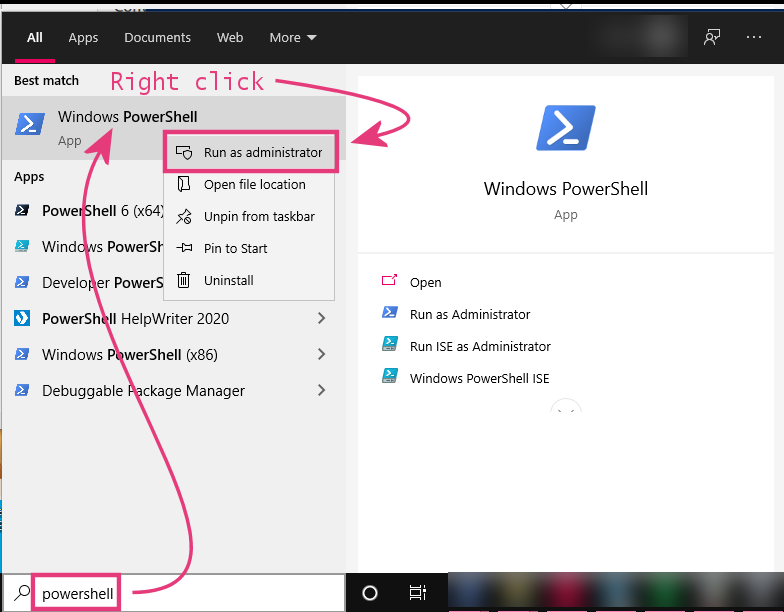
When prompted, either click OK to approve elevation to full administrator, or (if requested) type your administrative password to approve elevations.You'll get a console window in response. - Copy the MSSTDFMT.DLL file to the proper directory, which depends on the type of Windows you're running:
- 64-bit Windows: C:\Windows\SysWow64\
- 32-bit Windows: C:\Windows\system32\
- "Register" the DLL with Windows, which also depends on the version of windows you're using:It will probably pop up a small dialog box showing you that it worked. If it fails, you're probably not a full administrator.
- 64-bit Windows: regsvr32 C:\Windows\SysWow64\MSSTDFMT.dll
- 32-bit Windows: regsvr32 C:\Windows\system32\MSSTDFMT.dll
- Try to run EvTime again.
It's unfortunate that this is all necessary, but it seems that nobody's stepped up to create a more modern tool that can perform this task.